
How it works
From link to donation in three steps
You make the link once. It keeps working wherever you print or post it.
1
Make the link
Open your donation product in the admin, choose an amount and a name for where the link will be used, and copy it. Your AI assistant can make one for you too.
2
Make the QR code with Badger Links
Paste the link into Badger Links for a print-ready QR code, with your logo in the centre if you want one. Then print it on the van, a bucket, a stall banner, a poster or a raffle ticket.
3
Supporters give
Scanning opens checkout with the amount set. They can change the amount, tick Gift Aid and pay by card, or with Apple Pay or Google Pay where their phone has it.
Where it works
Anywhere you can print or paste a link
One link per place means you can tell which place raised what.
On the van
A QR code on the side of a rescue vehicle or minibus turns every car park and show into a chance to give.
Buckets and stalls
Not everyone carries cash. A code on the bucket or the stall banner takes a card instead.
Posters and leaflets
Event posters, flyers, thank-you cards and programmes, each with its own link.
Emails and newsletters
A “donate £10” button that goes straight to paying, not to your home page.
Social posts
Put the link in an appeal post or a bio, with the amount you are asking for.
Other websites
A partner, a sponsor or an event page can add a donate button that lands on your own checkout.
QR codes from Badger Links
Make the code with Badger Links
Badger Links is our short-link and QR code tool. It works with any link, and it suits donation links particularly well.
Change it after it’s printed
Put the donation link on a Badger short link and the printed code can be pointed somewhere new later, such as a new appeal or amount, without repainting the van.
Count the people who scanned
Every scan is counted. Link previews, mail scanners and browser prefetches are counted separately, so the number is people.
Print-ready
SVG for print or PNG, with your logo in the centre kept small enough to scan, and a warning about how small you can print it.
The QR code generator is free with no sign-up. Codes on a Badger short link are free for your first 10 links.
And also
Know which link did the work
Each link can carry a source, such as “van”, “summer-fair-2026” or “spring-newsletter”.
Tagged at source
Every donation made through a link is tagged with its source, so you can see where each gift came from.
Not only donations
A link can sell a single item with the quantity set, such as a raffle ticket or an event place.
Your own Stripe account
Donations are paid straight into your own Stripe account, as with everything else on the Charity plan.
What supporters see
Straight to giving
The link skips the shop and the basket. Supporters land on one checkout page made for the donation.
Amount buttons: the link’s amount and a few steps up, plus an “Other amount” box.
The Gift Aid declaration on the same page, naming your charity.
Apple Pay, Google Pay and Link where the phone supports them, with the total following any change of amount.
Anything already in their basket is left as it was.
The usual confirmation page and email once they have paid.
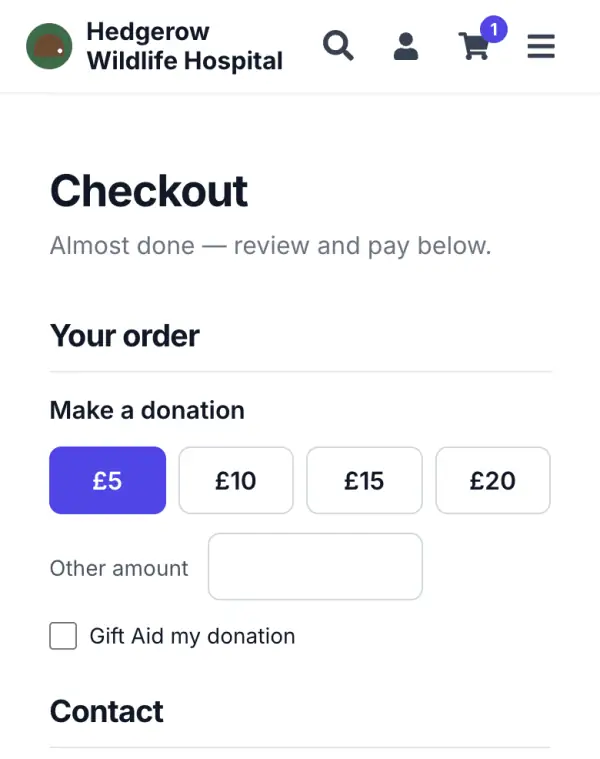
Try it on the Hedgerow demo
Open a £5 donation link on the demo charity, change the amount and tick Gift Aid. Checkout runs in test mode, so no money moves.